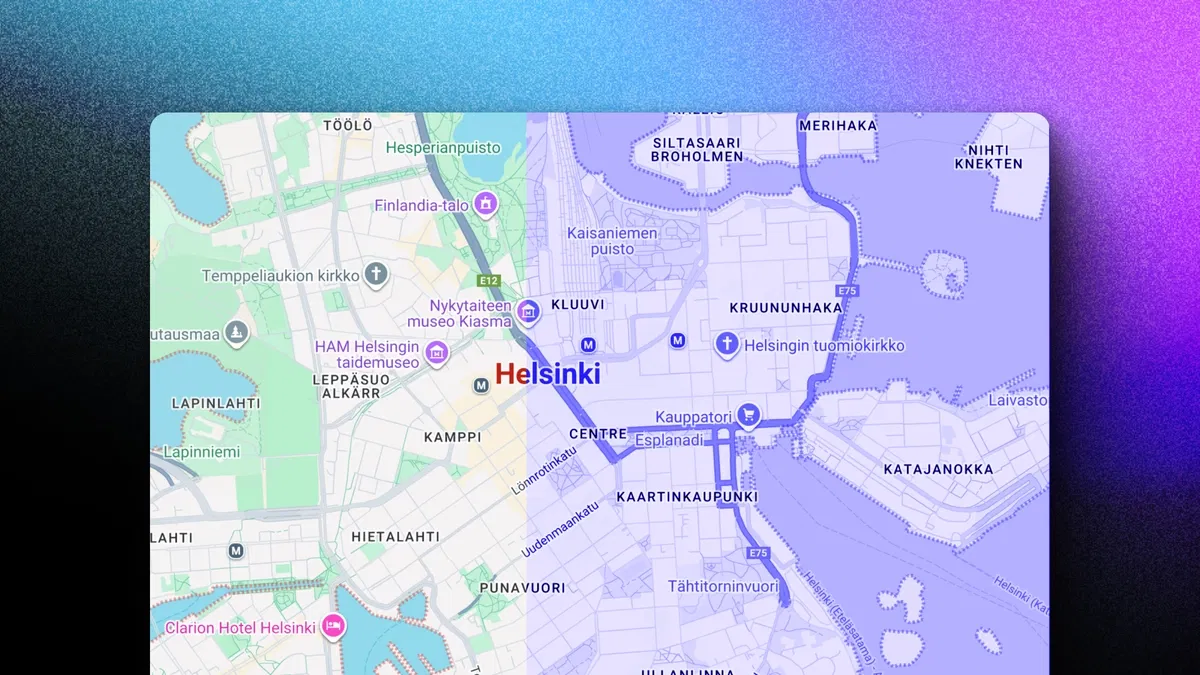
Native Google Maps component embedding directly from Framer's elements panel
Quick styling via built-in filters (hue, saturation, brightness, contrast) for brand-aligned looks
Simple placement, sizing, and positioning of maps on pages or sections
Real-page integration examples showing maps in contact, about, or location sections
Text-based tutorial with clear, numbered steps for fast implementation
#What is This Course?
"Styled Google Maps" is a free, text-based tutorial on the Framer Marketplace, created by Tanel Sepp (@tanel-sepp). This framer resource teaches how to add and customize Google Maps embeds in Framer so they blend seamlessly with your site's branding—addressing the common issue of default maps looking out-of-place. The guide delivers a fast 4-step process: add the Google Maps component, place and size it, apply quick filters for styling, and refine for perfect integration. Structured as a concise article with numbered steps and practical tips, it uses Framer's built-in Maps element and style controls for no-code results. No video runtime or duplicatable project is explicitly noted, but the workflow is straightforward and applies directly in any Framer canvas. It's invaluable for designer-developers who want location maps to feel custom and professional—elevating contact pages, store finders, or about sections without third-party complexity or performance trade-offs.
#What You’ll Learn ⚡
Adding the native Google Maps component from Framer's elements panel and configuring basic settings (address, zoom, map type)
Placing and sizing the map frame accurately on your page or section for ideal layout fit
Applying quick style filters (hue rotation, saturation, brightness, contrast) to match your brand colors and aesthetic
Testing and refining the styled map in preview mode for consistent appearance across devices
#Who Is This For?
This tutorial is perfect for Framer users incorporating maps into their designs—especially if default Google Maps clash with your site's look or feel too generic.
Skill Level: Beginner—simple enough for anyone comfortable adding elements
Prior Knowledge Needed: Basic Framer canvas navigation and element placement; no Google Maps API key or code required
Use Case 1: Adding branded location maps to contact/about pages, restaurant sites, or business listings
Use Case 2: Enhancing portfolios or agency sites with styled office/store finders
Pain Point Solved: Generic-looking maps breaking visual consistency—style them to match your palette
Pain Point Solved: Complex styling tutorials—use Framer's quick filters for fast, effective results
Bonus Fit: Template users or designers wanting maps to feel custom without advanced setup
#Course Structure Breakdown
This text-based tutorial flows as a tight, 4-step guide—easy to follow while in your Framer project, with an intro on branded maps and numbered actions.
Intro / Recap / Problem Statement: Hooks with the need for on-brand maps (default style often mismatches), promises a fast native solution in under 3 minutes
Main Demo Sections: Step 1: Add Google Maps component from elements; Step 2: Place and size the map frame on canvas
Key Live Examples or Walkthroughs: Step 3: Apply styling filters (hue, saturation, brightness, contrast) in properties panel for brand match
Tips / Best Practices: Step 4: Preview/test on devices, refine zoom/address, and integrate into sections—includes tips for better results
Wrap-up / Encouragement: Shows final styled map blended into a page, reinforces speed and simplicity, and encourages applying to your own designs
Frequently Asked Questions
Do I need a Google Maps API key for this?
No—the native Framer Google Maps component works without an API key for basic embeds and styling; advanced features may require one, but this tutorial keeps it simple.
Can I fully custom-style maps like Snazzy Maps?
This guide uses Framer's built-in filters for quick branding; for advanced JSON styles (e.g., Snazzy Maps), you'd need custom code embeds—the tutorial focuses on fast native options.
Will styled maps look good on mobile?
Yes—Framer's responsive canvas and filters adapt naturally; test in device previews as recommended to ensure readability and balance.
Styled Google Maps
Brand your Google Maps embeds to perfectly match your site design
Resource Types :
Featured Framer Resources
Add Featured Product

Have a product?
Submit your Framer product to AllFramer, get featured, and drive genuine traffic while showcasing your work to the world. Turn your creativity into revenue and begin selling today! 🚀
Submit Resource