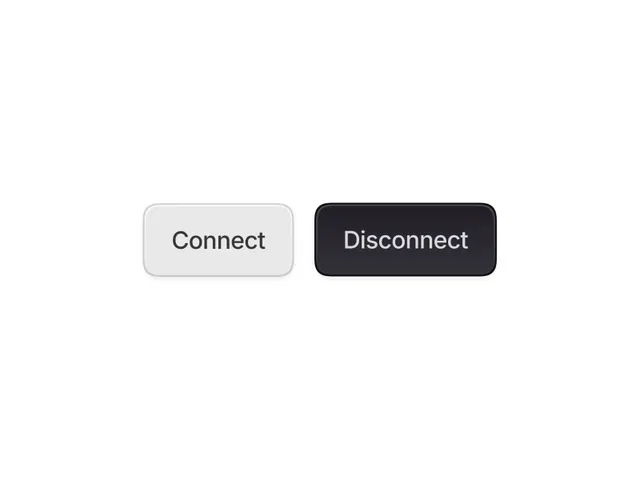
Clean, modern 3D illusion using layered frames, gradients, and inner shadows
Soft bevel effect with radial gradients and subtle border highlights
Realistic depth via inset shadows and slight scale/translate on hover
Smooth, spring-based hover feedback (lift, glow, color shift)
Variants for default, hover, active/pressed, and disabled states
Native Framer tools (frames, gradients, shadows, variants, interactions) for no-code/low-code build
#What is This Course?
"Realistic Button" is a free video tutorial on the Framer Marketplace, created by a skilled designer/animator (community-featured creator). This framer resource intermediate-level video teaches how to build a minimal 3D button component that looks and feels physically real—using layered gradients for bevel lighting, soft inner shadows for depth, and subtle motion for hover/pressed feedback. Delivered through narrated screen recordings with live canvas construction, zooms on gradient editors, shadow settings, variants panel, and real-time interaction previews, it covers frame stacking, gradient tuning, shadow layering, hover lift effect, and state variants. Video length is likely 10–15 minutes (typical for Marketplace component tutorials), with pause-friendly pacing for following along. No duplicatable project is explicitly noted in listings, but the tutorial is designed for direct replication in your Framer canvas. It's especially valuable for designer-developers who want CTAs and interactive elements to stand out with subtle realism—elevating UI polish without heavy 3D libraries or code.
#What You’ll Learn ⚡
Building the button base with stacked frames for background, bevel highlight, and depth shadow
Creating realistic bevel lighting using radial/conic gradients and subtle border effects
Adding soft inner depth with inset box shadows and slight opacity layering
Designing hover feedback (scale up, translate Y lift, glow/shadow change) with spring transitions
Setting up variants for default/hover/active/pressed/disabled states and linking them to interactions
#Who Is This For?
This video tutorial is ideal for Framer users crafting high-fidelity, premium-feeling interfaces—perfect if your buttons look flat or you want that subtle "real object" tactility.
Skill Level: Intermediate—assumes comfort with variants, interactions, and gradients
Prior Knowledge Needed: Basic Framer components, shadows, motion properties
Use Case 1: Primary CTAs, submit buttons, or toggles in SaaS dashboards, portfolios, or landing pages
Use Case 2: Enhancing templates or client projects with tactile, modern interactive elements
Pain Point Solved: Flat buttons lack personality—add 3D depth and hover realism
Pain Point Solved: Animations feel stiff—tune spring motion for natural feedback
Bonus Fit: Designers inspired by neumorphism/glassmorphism trends wanting Framer-native execution
#Course Structure Breakdown
This video tutorial flows as a live, narrated build-along—screen recording with canvas zooms, gradient/shadow panel focus, variants setup, and real-time hover testing for easy pausing/replication.
Intro / Recap / Problem Statement: Hooks with the appeal of tactile, realistic buttons, explains minimal 3D illusion goals, outlines layers and motion needed
Main Demo Sections: Build base frame, add background gradient, create bevel highlight layer (radial gradient), layer inset shadow for depth
Key Live Examples or Walkthroughs: Set up hover variant (scale + Y translate + glow), apply spring transition, add pressed/active state (inset effect), finalize disabled look
Tips / Best Practices: Tune shadow blur/spread for softness, balance gradient stops for natural light, test hover on devices, keep layers minimal for performance
Wrap-up / Encouragement: Shows final button in action (default → hover → pressed), highlights premium feel, and encourages experimenting with your own colors/shapes
Frequently Asked Questions
Do I need code overrides for the 3D effect?
No—tutorial uses native frames, gradients, shadows, and variants; pure no-code approach with optional light overrides for advanced polish.
How do you make the hover feel "lifted"?
Slight scale (1.03–1.05) + Y translate (-2 to -4px) + shadow spread/blur increase on hover—video demos ideal values.
Can this button be used in dark mode?
Yes—create light/dark variants or use variables for colors/shadows; tutorial likely shows adaptable setup.
Realistic Button
Craft a minimal yet hyper-realistic 3D button in Framer
Resource Types :
Featured Framer Resources
Add Featured Product

Have a product?
Submit your Framer product to AllFramer, get featured, and drive genuine traffic while showcasing your work to the world. Turn your creativity into revenue and begin selling today! 🚀
Submit Resource