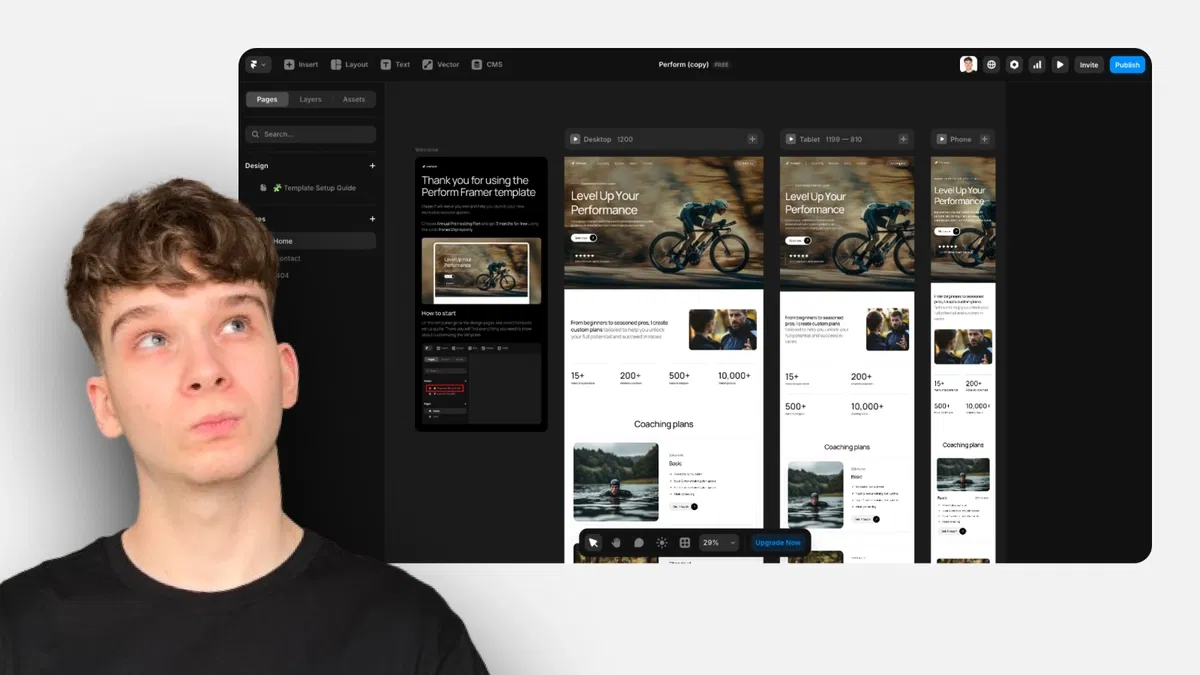
Complete visual walkthrough of Framer's main interface sections (canvas, left sidebar, top bar, right panel, bottom bar)
Clear explanations of core tools (selection, text, shapes, components, layers, assets, preview)
Shortcut highlights for faster navigation and common actions
Beginner-oriented tips for avoiding confusion (e.g., where to find pages, styles, variables)
Part of foundational series (#1) setting up success for all template editing and custom building
#What is This Course?
"Framer Interface" is a free, text-based tutorial (likely 5–10 minutes reading time, structured as a concise explanatory article) on the Framer Marketplace, created by Adam Sebesta (@adam-sebesta). This framer resource serves as the perfect onboarding piece for complete newcomers or anyone feeling lost after opening Framer for the first time. The guide takes you on a tour of the entire interface: canvas (where magic happens), left sidebar (tools, pages, layers), top toolbar (undo/redo, preview, share), right properties panel (styles, interactions), and bottom bar (zoom, device previews). Presented as a labeled, practical overview with descriptions, screenshots references (implied), and quick tips, it builds immediate familiarity. No video runtime or duplicatable project is noted, but it's designed for side-by-side reading while exploring a blank canvas or template. It's invaluable for new Framer users—removing the "where is everything?" barrier so you can start creating, editing templates, or building from scratch with confidence right away.
#What You’ll Learn ⚡
Navigating the main canvas and using zoom/device preview controls for responsive work
Using the left sidebar to switch tools (selection, text, shapes), manage pages, view layers, and access assets/components
Understanding the top toolbar for undo/redo, preview/play mode, sharing, and project settings
Mastering the right properties panel to edit styles, add interactions, set variables, and configure element settings
Quick shortcuts and habits for efficient workflow (layers panel toggles, tool switching, preview testing)
#Who Is This For?
This tutorial is the ideal first step for anyone just starting with Framer—perfect if the interface feels overwhelming or you're opening a template and don't know where to click.
Skill Level: Absolute beginner—no prior Framer or design tool experience needed
Prior Knowledge Needed: None—just open Framer; tutorial assumes zero familiarity
Use Case 1: Getting oriented before customizing Marketplace templates or starting your first project
Use Case 2: Building muscle memory for efficient navigation when editing client or personal sites
Pain Point Solved: "I don't know where anything is"—clear map of every panel and tool
Pain Point Solved: Wasted time searching for basic actions—learn shortcuts and locations fast
Bonus Fit: Anyone beginning Adam Sebesta's "How to Use Framer Templates" series—sets foundation for all following lessons
#Course Structure Breakdown
This text-based tutorial flows as a structured, visual tour—easy to follow with Framer open beside you, with an intro on why interface familiarity matters and labeled sections.
Intro / Recap / Problem Statement: Welcomes new users, explains that Framer's clean interface becomes intuitive fast, promises a complete yet simple overview
Main Demo Sections: Core tour: canvas (center workspace), left sidebar (tools/pages/layers/assets), top toolbar (actions/preview/share)
Key Live Examples or Walkthroughs: Right properties panel (styles/interactions/variables), bottom bar (zoom/devices), and quick tool switching (V for select, T for text)
Tips / Best Practices: Highlights useful shortcuts (Cmd/Ctrl + click multi-select, layers panel toggle), common beginner gotchas (preview vs. canvas), and workflow habits
Wrap-up / Encouragement: Reinforces that mastering the interface unlocks everything else—encourages exploring a blank canvas or template and moving to next series steps
Frequently Asked Questions
How do I switch between tools quickly?
Use keyboard shortcuts: V = Selection, T = Text, R = Rectangle, etc.—tutorial lists the most common ones for speed.
Why doesn't something show up when I click Preview?
Some elements (scripts, embeds) only appear in Preview or live site, not canvas—guide explains this common confusion.
Featured Framer Resources
Add Featured Product

Have a product?
Submit your Framer product to AllFramer, get featured, and drive genuine traffic while showcasing your work to the world. Turn your creativity into revenue and begin selling today! 🚀
Submit Resource