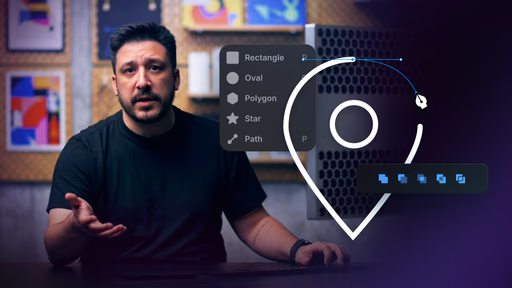
Step-by-step guidance on Framer's vector drawing tools for creating and editing paths/shapes
Breakdown of essential settings (e.g., stroke, fill, corner radius, boolean operations) that directly impact quality and scalability
Live demos applying drawn vectors to real pages and components for immediate context
Real-time canvas previews showing edits unfold as you draw
Included remix project for duplicating the starter setup and practicing techniques hands-on
#What is This Video Course?
"Drawing with Vectors in Framer" is the core hands-on lesson in Framer Academy's Mastering Vectors series, crafted by the Framer team and running at 7:56 for focused, actionable learning. This framer resource builds directly after the intro "Getting Started with Vectors" to teach a reliable workflow for drawing vectors natively in Framer—addressing the common struggle of clunky or imprecise assets in UI design. Delivered through engaging narrated screen recordings with clear demos, tool zooms, and live edits, it emphasizes practical application on actual pages while highlighting key settings for better results. A remix project lets you fork and experiment right away, making it super valuable for designer-developers who want crisp, scalable vectors that enhance UX and keep sites lightweight without external illustration apps.
#What You’ll Learn ⚡
How to access and use Framer's vector drawing tools to create precise paths, curves, and closed shapes from scratch
Mastering key editing techniques: adding/removing points, adjusting handles for smooth curves, and applying boolean operations for complex forms
Critical settings that control vector appearance and behavior—like stroke width/alignment, fill rules, corner rounding, and export options
Applying your drawn vectors directly to pages, components, or icons with real-time previews to see how they integrate and scale
Workflow tips for keeping vectors clean and efficient, avoiding common issues like jagged edges or bloat for superior performance
#Who Is This For?
This lesson is perfect for Framer users ready to move beyond basic shapes and start crafting custom vectors—ideal if you've been importing SVGs or struggling with imprecise built-in tools.
Skill Level: Beginner to intermediate—great entry point after "Getting Started with Vectors"
Prior Knowledge Needed: Basic canvas navigation and shape familiarity; no prior vector software (Illustrator/Figma) experience required
Use Case 1: Designing custom icons, loaders, or UI illustrations that need to match your brand perfectly
Use Case 2: Building editable components where vectors must remain tweakable across variants or themes
Pain Point Solved: Relying on external tools or messy imports—draw natively for seamless integration and faster iteration
Pain Point Solved: Vectors that look pixelated or break on scale—master settings for crisp, resolution-independent results
Bonus Fit: Designers prepping scalable assets for the rest of the Mastering Vectors series (sets, variables, animation)
#Course Structure Breakdown
This 7:56 video delivers a tight, demo-centric flow with narrated screen shares that zoom on tools and canvas—energetic pacing keeps it engaging while showing every click for easy replication.
Intro / Recap / Problem Statement: Quickly recaps vector basics from the prior lesson, then dives into why drawing natively in Framer beats imports—sets up the practical workflow promise
Main Demo Sections: Core teaching: accessing the vector tool, drawing straight/curved paths, editing points/handles, and using booleans to combine/subtract shapes—all shown step-by-step
Key Live Examples or Walkthroughs: Applies techniques live by creating sample icons or graphics, then places them on real pages/components to demonstrate scaling, styling, and context
Tips / Best Practices: Highlights throughout key settings (stroke alignment, fill modes, corner tools) and pro habits for clean paths—ensures vectors stay performant and easy to edit later
Wrap-up / Encouragement: Ends by showing polished results on-page, reinforces the foundation this builds for later lessons (sets, variables, animation), and directs you to the remix project for practice
Frequently Asked Questions
Do I need any vector experience to follow this lesson?
No—it's designed as a practical intro to Framer's native tools; it starts from basics and focuses on canvas-specific workflows rather than advanced illustration theory.
What's included in the remix project?
The remix gives you a duplicatable starter file with example setups or blank canvas ready for drawing—perfect for experimenting with paths, editing, and applying vectors without starting from zero.
How do key settings affect my vectors in practice?
Settings like stroke alignment (inside/center/outside) prevent unwanted overlaps, fill rules handle complex shapes cleanly, and corner radius tools make rounding effortless—the lesson demos these live so you see the impact instantly.
Drawing with Vectors
Build the foundation for icons, illustrations, and UI elements
Resource Types :
Featured Framer Resources
Add Featured Product
Have a product?
Submit your Framer product to AllFramer, get featured, and drive genuine traffic while showcasing your work to the world. Turn your creativity into revenue and begin selling today! 🚀
Submit Resource