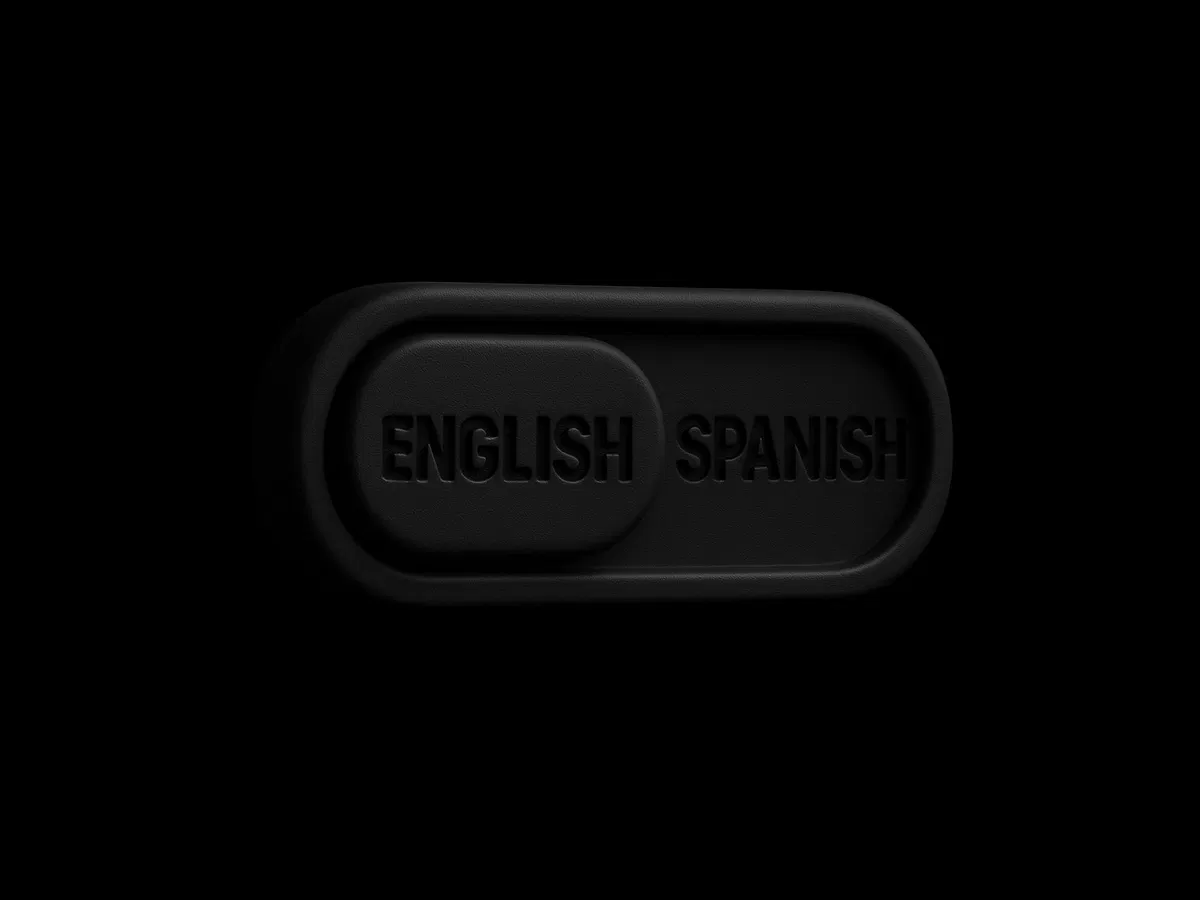
Replaces default Framer locale picker with fully custom, design-matched switcher.
Relies on native Set Locale interaction — no external code or scripts.
Uses Component Variants + conditional binding for real-time active-state visuals.
Supports any visual style: text labels, flags, icons, dropdowns, toggles.
Requires at least two configured locales to test functionality.
Fully no-code — perfect for visual designers using Framer Localization.
Includes hands-on duplicatable starter project for immediate practice.
#What is This Framer Blog?
This is a free, intermediate-level tutorial titled "Custom locale picker" on the Framer resource, created by Andreu and published about 1 month ago. It teaches how to build a fully custom language switcher component from scratch using Framer's native Localization features and the Set Locale interaction—replacing the default Framer locale picker with a design-aligned solution like a flag toggle, dropdown, text list, or branded selector. The tutorial focuses on no-code techniques to make the switcher visually unique while keeping it fully functional for multilingual sites. At ~12 minutes reading time, it includes a duplicatable starter project for hands-on practice and emphasizes control over branding, active-state feedback, and seamless language switching.
#What You’ll Learn ⚡
How to verify and configure supported locales in Framer's Localization view (globe icon in top bar).
Designing a visual locale picker with distinct layers/buttons for each language (e.g., text labels like EN/ES, flags, or icons).
Converting the design into a reusable Component for easy placement across the site.
Adding the Set Locale interaction to buttons/layers to switch languages instantly.
Using Component Variants and Variant variables to visually highlight the active language (e.g., bold, underline, color change).
Binding variants conditionally so the UI updates dynamically when the locale changes.
Testing the picker in preview mode to confirm content switches correctly across languages.
Best practices for extending the picker (animations, hover states, more languages) and integrating it into headers/navigation.
#Who Is This For?
This tutorial is ideal for:
Intermediate Framer users building multilingual sites who find the default locale picker too generic or mismatched with their design.
Designers and creators needing a branded language switcher (flags, minimal text, custom dropdowns) that feels native to the brand.
Anyone using Framer's Localization 2.0 features and wanting to go beyond basic pickers for better UX and aesthetics.
Freelancers/agencies delivering localized client projects who require custom, accessible, and visually consistent language selectors.
Users comfortable with Framer components, interactions, and variants but new to advanced localization workflows.
It's especially useful if your site supports multiple languages but the stock picker disrupts visual harmony.
#Blog Brief Breakdown
The tutorial is clear, visual, and action-oriented with step-by-step instructions, screenshots (implied), and a duplicatable project:
Verify Your Locales — Open Localization view (globe icon); confirm primary language (e.g., English); add secondary languages (e.g., Spanish); ensure at least two are set up.
Design Your Locale Picker Component — Build visual layout on canvas (e.g., EN/ES text stacks or flag icons); make each language a distinct, clickable layer/button; select all and convert to Component.
Add the “Set Locale” Interaction — Select a language button; in Interactions panel add Set Locale action; assign correct locale (e.g., English for EN); repeat for each button.
Visualizing the Active State — Edit component; create Variants for each language (e.g., “English Active”, “Spanish Active”); style active states (highlight, bold, etc.); outside component, bind Variant variable to current locale for dynamic switching.
Test Your Picker — Drag component into header/navigation; preview site; click buttons to verify instant content/language switch and active visual feedback.
Wrap-up & Extensions — Emphasizes full design control (flags, toggles, animations); encourages adding hover states or more languages; provides duplicatable project link for practice.
Frequently Asked Questions
Do I need code for this tutorial?
No — it's completely no-code, using only Framer's built-in Localization view, Interactions, Components, and Variants.
What prerequisites are required?
A Framer project with Localization enabled and at least two languages configured (primary + one secondary).
How does the active language get highlighted?
By creating Variants per language inside the component and binding a Variant variable outside to the current locale for conditional display.

Have a product?
Submit your Framer product to AllFramer, get featured, and drive genuine traffic while showcasing your work to the world. Turn your creativity into revenue and begin selling today! 🚀
Submit Resource