Step-by-step creation of cohesive vector sets for consistent sizing, styling, and behavior
Seamless import of external icon libraries (like popular SVG packs) directly into Framer
Best-practice organization techniques using Framer's asset panel for clean project structure
Practical application demos showing vectors added to real pages and components
Narrated screen recordings with clear visual walkthroughs to reinforce learning
#What is This Video Course?
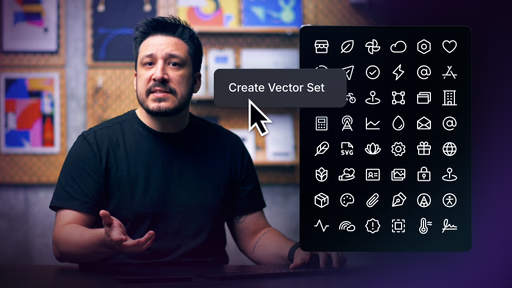
"Creating and Organizing Vector Sets in Framer" is a focused, practical lesson from the Framer team within the Mastering Vectors in Framer course series, clocking in at 6:58 for solid depth without overwhelming length. Published on February 11, 2026 (fresh and relevant as of March 05, 2026), it directly addresses the growing-pains challenge of managing icons and vectors in expanding projects—loose assets lead to style drift, size inconsistencies, and workflow friction. Through engaging narrated screen recordings and live demos, this framer resource guides you through creating unified sets, importing external libraries, organizing everything neatly in the assets panel, and integrating vectors smoothly into your designs. No duplicatable project is explicitly mentioned here (unlike some siblings in the series), but the emphasis on real-page application and key settings makes it instantly actionable. It's a must-watch for designer-developers who want professional-grade icon systems that scale beautifully and keep projects performant.
#What You’ll Learn ⚡
How to create cohesive vector sets from scratch, ensuring uniform style, size, and alignment across your entire project
Efficient ways to import and adapt external icon libraries (SVGs from sources like Iconoir, Feather, etc.) into Framer
Proven organization strategies in the asset panel—naming conventions, grouping, and folder-like structure for quick access
Techniques to add organized vector sets to pages, components, and layouts without breaking consistency
Workflow tips that prevent common pitfalls like inconsistent rendering or bloated canvases, leading to faster iterations and cleaner UX
#Who Is This For?
This lesson shines for Framer users moving beyond basic drawing to build maintainable design systems, especially when icon usage multiplies across pages and components. It's perfect if scattered vectors are starting to frustrate your process.
Skill Level: Beginner to intermediate—builds nicely on "Getting Started with Vectors" and "Drawing with Vectors in Framer"
Prior Knowledge Needed: Comfort with basic vector creation in Framer (paths, shapes, editing); no advanced coding required
Use Case 1: Designing icon libraries for dashboards, apps, or websites where dozens of icons need to stay perfectly matched
Use Case 2: Importing and standardizing third-party icon sets for client projects without style mismatches
Pain Point Solved: Eliminating visual inconsistencies from loose, ungrouped icons that vary in stroke, scale, or color
Pain Point Solved: Speeding up asset management in large projects by organizing everything accessibly in one place
Bonus Fit: Designers prepping scalable components for teams or handoffs, ensuring icons remain editable and uniform downstream
#Course Structure Breakdown
This 6:58 video delivers a logical, demo-heavy flow that's easy to follow and apply immediately—narrated screen shares keep the pace lively while zooming in on every important click and panel.
Intro / Recap / Problem Statement: Starts strong by highlighting the real-world headache: as projects scale, loose icons create inconsistency in size/style and drag down efficiency—sets up the need for organized vector sets right away
Main Demo Sections: Core walkthrough covers creating cohesive sets (from drawing or combining paths), importing external libraries (drag-drop or paste SVGs), and key settings that control appearance and behavior
Key Live Examples or Walkthroughs: Shows organization in action—structuring sets in the asset panel, applying naming/grouping best practices, then adding the organized vectors to actual pages and components with instant results
Tips / Best Practices: Integrates practical advice throughout, like consistent sizing guidelines, thoughtful naming for searchability, and ways to keep imports clean to avoid performance hits
Wrap-up / Encouragement: Closes by reinforcing how these organized sets transform your workflow, making future additions and updates effortless—leaves you motivated to tidy up your own projects
Frequently Asked Questions
Why organize vectors into sets instead of keeping them loose on the canvas?
Loose icons lead to mismatched sizes, styles, and hard-to-find assets as your project grows—sets keep everything cohesive, searchable, and reusable, saving time and preventing visual bugs.
Can I import icon libraries from other sources like Figma or Icon sets?
Yes—the lesson demos importing external SVGs (popular libraries work great), then organizing and customizing them in Framer for perfect integration.
What are the best naming and grouping practices for vector sets?
Use descriptive, consistent names (e.g., "icons/social/twitter"), group related icons together in the asset panel, and leverage folders or categories—the video shows real examples to make your library intuitive.
Creating and Organizing Vector Sets
Build clean, scalable icon systems that keep your Framer projects
Resource Types :




Have a product?
Submit your Framer product to AllFramer, get featured, and drive genuine traffic while showcasing your work to the world. Turn your creativity into revenue and begin selling today! 🚀
Submit Resource