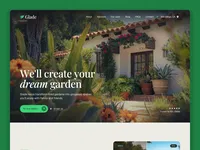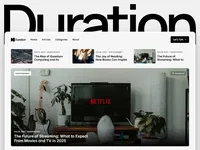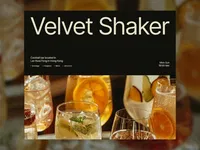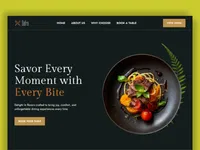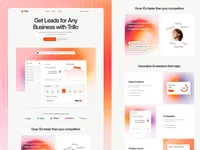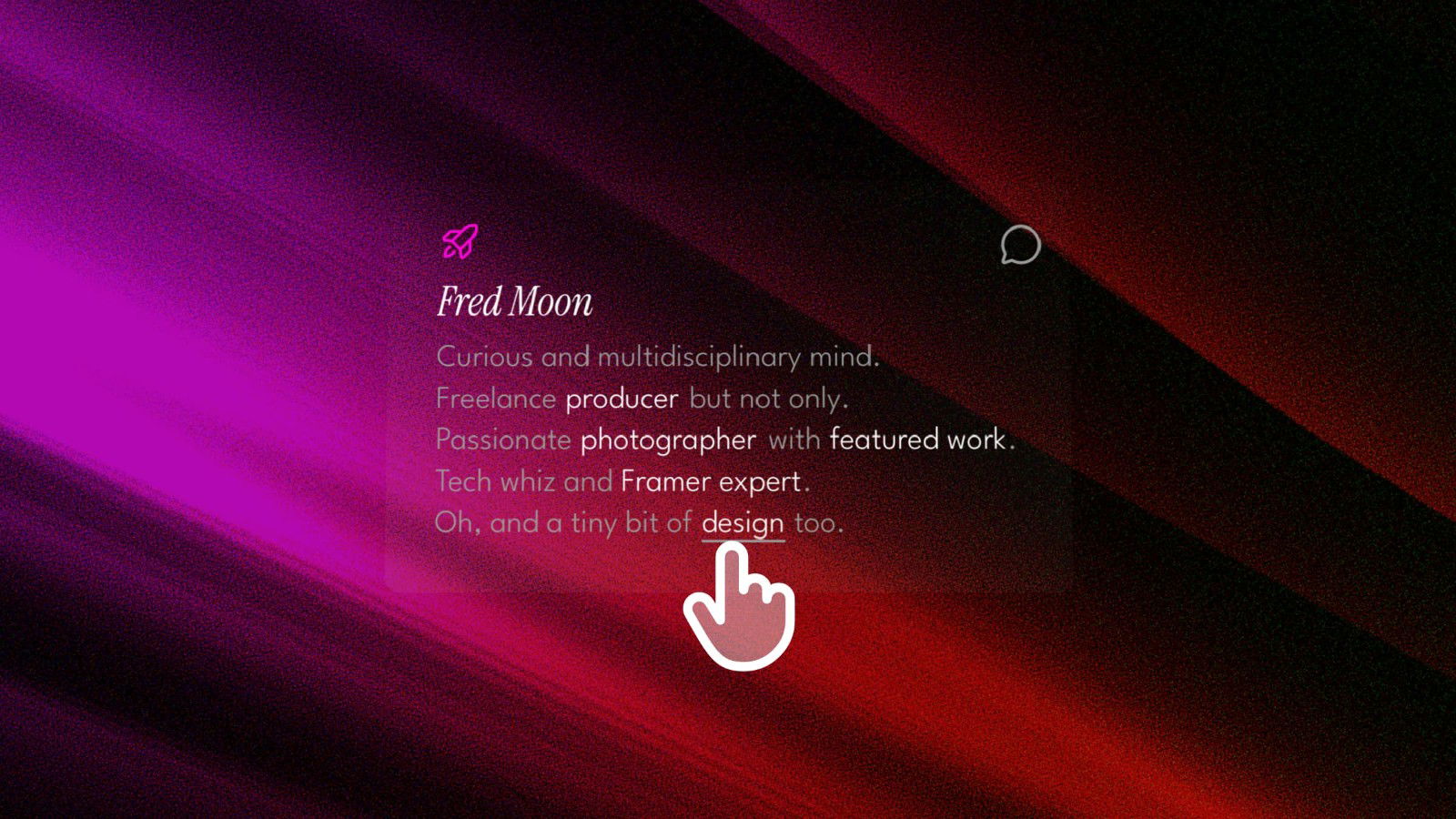
Clear breakdown of Framer's event system: triggers (click, hover, while scrolling), actions (navigate, set variant, animate, show/hide)
Practical setup of component-level events (on master or instance) and event chaining (multiple actions in sequence)
Use of variants for state changes triggered by events (e.g., button pressed → loading → success)
Real examples of common interactive patterns (accordion toggle, dropdown menu, scroll animations, link navigation)
Text-based guide with Framer-specific steps, right panel references, and tips for clean, performant interactions
#What is This Course?
"Component Events" is a free, text-based tutorial on the Framer Marketplace, created by Adam Sebesta (@adam-sebesta) as #7 in the "How to Use Framer Templates" series. This framer resource demystifies adding interactivity to components—showing how to make static elements respond to user actions like clicks, hovers, or scroll position. The guide starts with why events matter (engagement, feedback, navigation), then covers core workflow: selecting a component, opening the Interactions panel, choosing triggers, defining actions (variant change, navigation, animation), and chaining multiple steps. Structured as a practical article with steps, examples, and tips, it uses Framer's right panel Interactions tab and variants for no-code power. No video runtime or duplicatable project is explicitly noted (series often pairs with template starters), but it's designed for direct application in any Framer template or custom component. It's invaluable for designer-developers moving from static to interactive designs—unlocking micro-interactions, state changes, and navigation that make sites feel alive and professional.
#What You’ll Learn ⚡
Adding events to components (master or instance) via the Interactions panel in the right sidebar
Choosing triggers (on click, while hovering, while scrolling, on appear) and linking them to actions
Using actions like set variant (for state changes), navigate to page/section, animate properties, or show/hide layers
Chaining multiple actions in one event (e.g., click → change variant → navigate → animate)
Applying events to common patterns: toggle accordions, open/close modals, hover effects, scroll-triggered reveals
#Who Is This For?
This tutorial is perfect for Framer users ready to add interactivity—ideal if your components feel static or you're customizing templates without knowing how to make buttons/links work.
Skill Level: Beginner to intermediate—assumes basic component knowledge
Prior Knowledge Needed: Comfort with components, variants, and the right panel (covered in earlier series parts like #4 Components Explained)
Use Case 1: Making template buttons, cards, nav items, or accordions interactive and responsive
Use Case 2: Adding micro-interactions (hover states, click feedback) or scroll animations to custom designs
Pain Point Solved: "Nothing happens when I click"—connect triggers to meaningful actions
Pain Point Solved: Clunky or missing interactions—learn clean event setup and chaining
Bonus Fit: Anyone in Adam Sebesta's "How to Use Framer Templates" series progressing toward dynamic, user-friendly sites
#Course Structure Breakdown
This text-based tutorial flows as a logical, hands-on guide—easy to follow with Framer open, starting with event basics and building to practical patterns.
Intro / Recap / Problem Statement: Explains why component events are key to engagement, recaps series progress, and promises a simple no-code workflow
Main Demo Sections: Core setup: select component → Interactions panel → add event → choose trigger (click/hover/scroll) → define action (variant, navigate, animate)
Key Live Examples or Walkthroughs: Common patterns: accordion toggle (click → variant switch), button states (hover → scale), scroll reveal (while scrolling → opacity/position), event chaining
Tips / Best Practices: Use variants for states, chain actions logically, test in preview, avoid over-triggering for performance—includes pro advice throughout
Wrap-up / Encouragement: Reinforces how events turn static into dynamic—encourages building a sample interactive component and continuing the series
Frequently Asked Questions
What's the difference between adding an event to a master vs. an instance?
Master events apply to all instances (great for consistent behavior); instance events add custom triggers/overrides without affecting others—tutorial explains safe use.
How do I make a button change color on hover?
Create hover variant in component → add event "while hovering" → action "set variant" to hover state—guide shows exact steps.
Can events navigate to another page?
Yes—use "navigate to" action with page or section link; tutorial covers internal/external navigation.
Featured Framer Resources
Add Featured Product

Have a product?
Submit your Framer product to AllFramer, get featured, and drive genuine traffic while showcasing your work to the world. Turn your creativity into revenue and begin selling today! 🚀
Submit Resource